

If you work with Chrome extensions, you’ll quickly realize that logging and debugging can be surprisingly painful. While JavaScript provides console.log, the place where those logs appear can feel chaotic.
When your extension runs across multiple tabs or different contexts (background, content scripts, popup, etc.), logging with console.log alone becomes confusing. You constantly need to figure out where the log is showing up and which part of the extension it belongs to.
In this blog post, I will talk about exactly where logs appear in each Chrome extension context and highlight some tricky cases to be aware of.
You can encounder missing or don’t actually see your console.log because in reality, each Chrome tab runs in its own renderer process, which contains its own instance of the JavaScript engine. That means every tab has its own isolated JavaScript runtime, memory space, and event loop. In practice, you can think of each tab as a completely separate JavaScript engine instance.
Chrome extensions build on top of this architecture, which includes:
PopUp
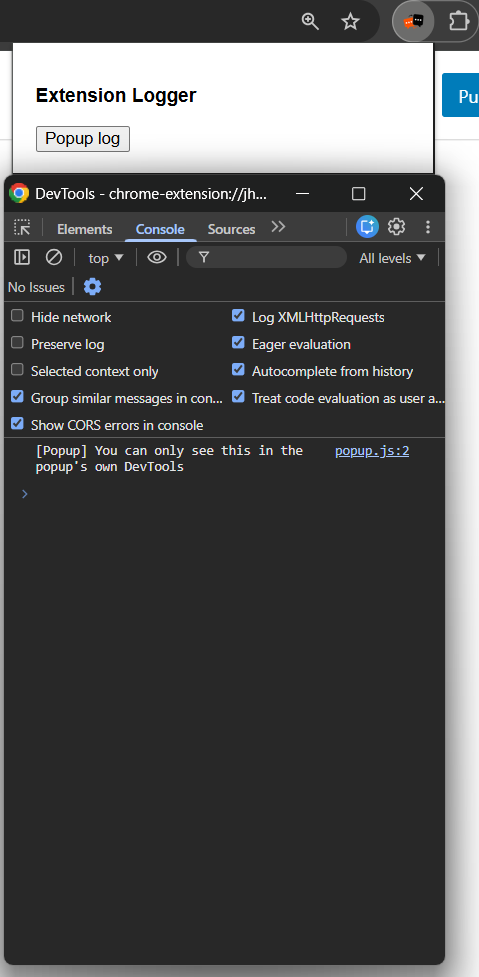
UI for showing your chrome extension when the user clicks on the chrome extension logo. The console.log within the Popup.js will stay within popup’s DevTools console.
`popup.html`
<!DOCTYPE html>
<html>
  <head>
    <meta charset="UTF-8" />
    <style>
      body { width: 300px; padding: 10px; font-family: sans-serif; font-size: 13px; }
    </style>
  </head>
  <body>
    <h3>Extension Logger</h3>
    <button id="btn-popup-log">Popup log</button><br />
    <script src="popup.js"></script>
  </body>
</html>


`popup.js`
document.getElementById("btn-popup-log").addEventListener("click", () => {
console.log("[Popup] You can only see this in the popup's own DevTools");
});Right-click anywhere in the popup UI and select Inspect to open the popup’s DevTools.
Background script (or service worker in Manifest V3)
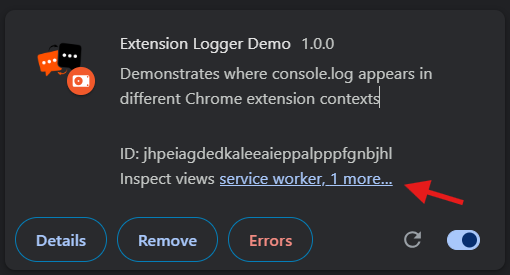
runs in its own separate process and acts as the central coordinator between tabs. The log will appear in its own service worker log tab.
Go to chrome://extensions/ and click on service worker link on your extension to open the service worker DevTools.
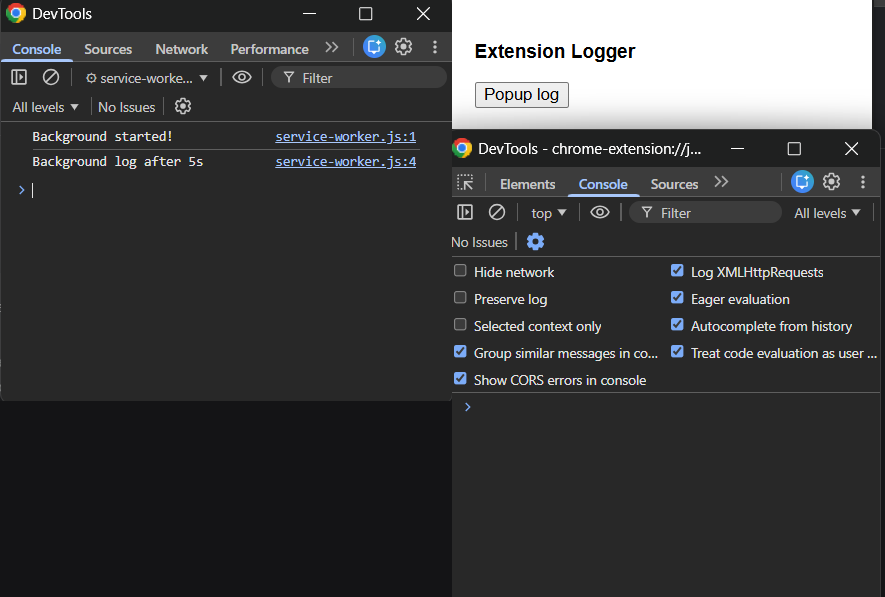
There’s a tricky case about this you might confuse, since the log in background also can appear on the popup.html inspector, here why:
- If a console.log in the service worker fires while the popup UI is open, the popup inspector will also receive that log.
- If the console.log fires while the popup UI is closed, the log will only appear in the service worker’s console, not in the popup console.
Let demonstrate this to see how it’s work.
`service-worker.js`
console.log("Background started!");

setTimeout(() => {
  console.log("Background log after 5s");
}, 5000);
Now, if you open the service worker console first, then close it for about one minute to allow Chrome to terminate the background service worker, and finally open the popup inspector, you will not see any background logs at all in the Popup DevTools.
Content Scripts
Run in each tab’s renderer process in an isolated environment, separate from the page and other tabs.
// let add a content script in manifest.json
"content_scripts": [
    {
      "matches": ["<all_urls>"],
      "js": ["content/content-script.js"],
      "css": ["content/content-style.css"]
    }
  ],

// and within the content-script.js
console.log("[Content Script] 📄 Loaded on:", window.location.href);
console.log("[Content Script] 🌐 Document title:", document.title);
Since we are allowed to run the content script on all URLs by manifest, let’s test it on any URL.
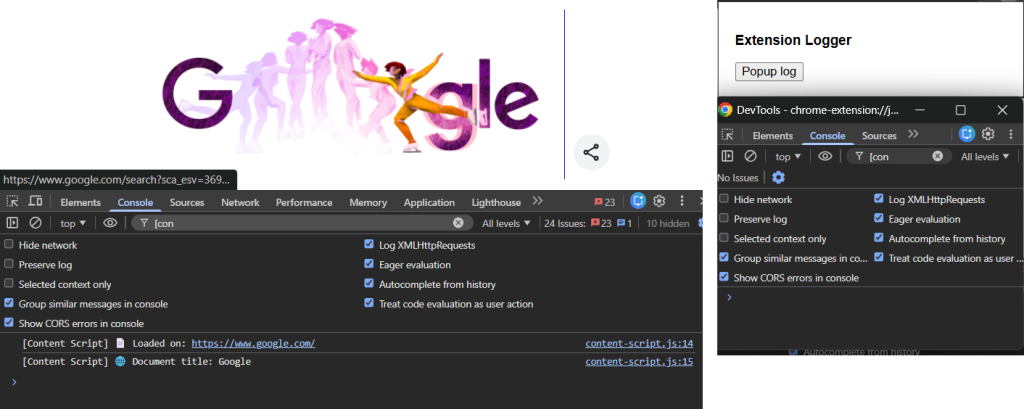
As you can see the content script only show within each tab DevTools itself and not show in popup inspector at all.
Understanding where logs appear in your Chrome extensions is important for debugging. Popup scripts, background/service workers, and content scripts each run in their own environment, so logs work differently in each. If you remember this, you can find bugs and problems in your code faster and more easily.
Sereyreach Him is a Lead Developer at NiyAI Data Co, Cambodia’s premier data and software consulting company.
 Vaneath